Introduction to Adobe Premiere Pro: Video Editing Basics for Creators
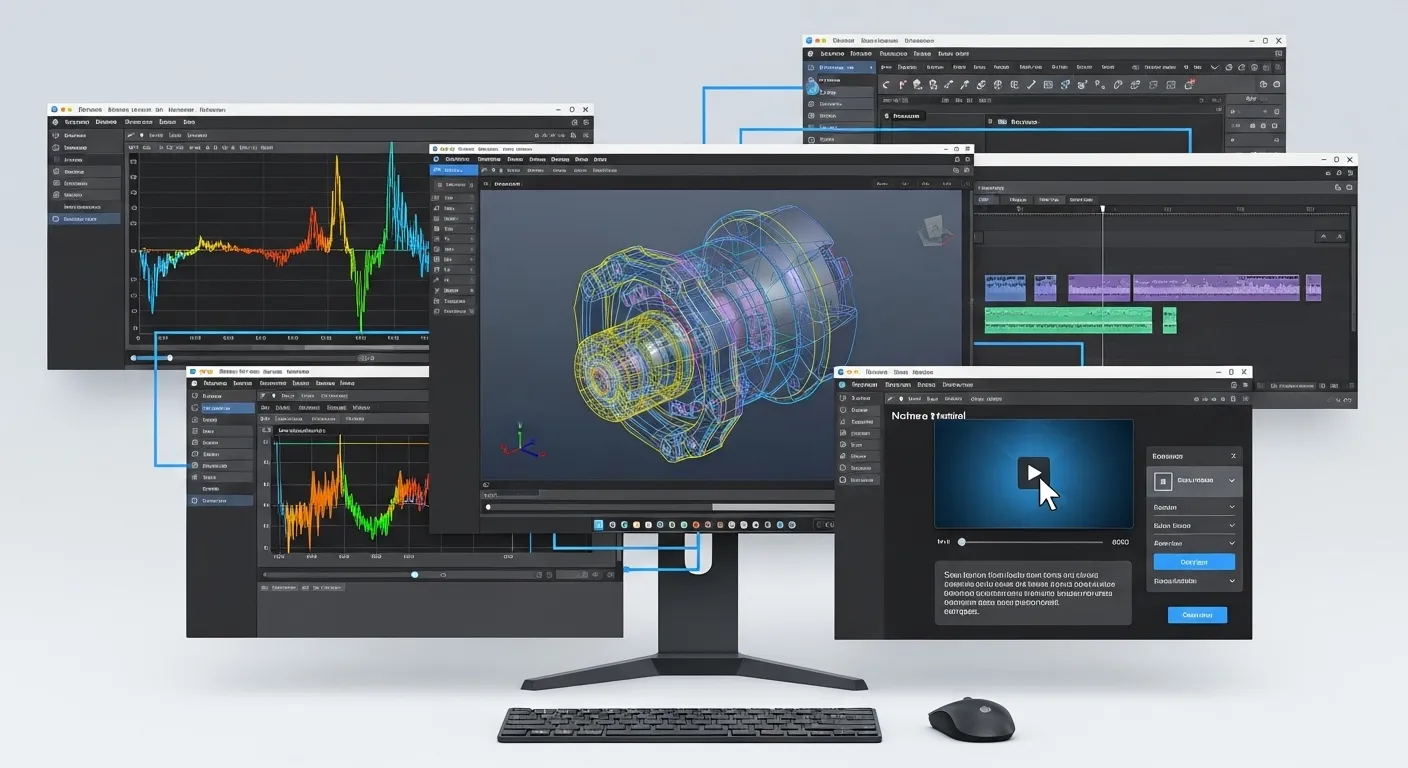
Embarking on your journey as a video creator requires powerful tools, and Adobe Premiere Pro stands out as an industry-standard choice. This comprehensive guide provides an introduction to Adobe Premiere Pro, breaking down the video editing basics for creators into digestible steps. Whether you're crafting content for YouTube, TikTok, or professional presentations, understanding Premiere Pro's core functionalities is crucial for bringing your vision to life. We'll navigate everything from setting up your first project to mastering essential editing techniques and optimizing your workflow, ensuring you gain the confidence to produce compelling videos.
Key Points for Getting Started with Premiere Pro
- Understand the Interface: Familiarize yourself with panels like Project, Source, Program, and Timeline.
- Master Essential Tools: Learn to use the Selection, Razor, and Type tools effectively.
- Efficient Workflows: Discover tips for organizing media and speeding up your editing process.
- Leverage AI Features: Explore new AI-powered tools like Text-based Editing for enhanced productivity.
- Optimize Export Settings: Ensure your final video looks great on any platform with correct export configurations.
Getting Started with Adobe Premiere Pro: Your First Project
The first step in any creative endeavor is setting up your workspace, and Adobe Premiere Pro makes this straightforward. When you launch Premiere Pro, you'll be greeted with the start screen, offering options to create a new project or open an existing one. For an introduction to Adobe Premiere Pro, selecting "New Project" is your gateway. It's vital to choose a clear, descriptive name for your project and select a dedicated location on your hard drive for saving. This organization prevents future headaches and ensures all your project files are easily accessible.
Setting Up Your Premiere Pro Workspace
Once your project is created, you'll enter the main editing interface. Premiere Pro's layout is highly customizable, but it typically defaults to a standard arrangement of panels:
- Project Panel: This is your media hub, where you import and organize all your video clips, audio files, images, and graphics. Keeping this panel tidy with bins (folders) is a fundamental video editing basic for creators.
- Source Monitor: Here, you can preview individual clips, set in and out points, and select specific portions before adding them to your timeline.
- Program Monitor: This displays your active sequence (your edited video) as you build it on the timeline.
- Timeline Panel: The heart of your editing process. This is where you arrange, trim, and layer your video and audio clips to tell your story.
Familiarizing yourself with these core panels is the foundation of effective editing. You can rearrange them by dragging their tabs, creating a workspace that best suits your personal editing style.
Essential Premiere Pro Tools for Beginners: Crafting Your Story
Mastering a few key tools is paramount for anyone learning Adobe Premiere Pro. These tools enable you to manipulate your footage, sculpt your narrative, and add creative flair. Understanding their functions is a critical video editing basic for creators looking to produce polished content.
Core Editing Tools You Need to Know
- Selection Tool (V): The most frequently used tool. It allows you to select, move, and trim clips on the timeline. Think of it as your primary interaction tool.
- Razor Tool (C): Essential for cutting clips. Use it to split a single clip into multiple segments, allowing you to remove unwanted parts or insert new footage.
- Type Tool (T): For adding text and titles to your video. You can customize fonts, sizes, colors, and animations directly within Premiere Pro.
- Track Select Forward Tool (A): Selects all clips on a track from a certain point forward, incredibly useful for making space or moving entire sections of your edit.
- Slip Tool (Y) and Slide Tool (U): These advanced trimming tools allow you to adjust a clip's content or position without affecting the overall duration of your sequence. While not strictly beginner, understanding their existence is beneficial.
Practicing with these tools will significantly improve your editing speed and precision. Many creators find that consistent practice with these fundamental tools is the quickest way to gain proficiency in Adobe Premiere Pro.
Streamlining Your Video Editing Workflow: Tips for Creators
Efficiency is key for creators who often juggle multiple projects and tight deadlines. An optimized workflow in Adobe Premiere Pro can save hours, allowing you to focus more on creative storytelling and less on technical hurdles. This section delves into practical video editing basics for creators to enhance productivity.
Organizing Your Media and Project Files
A well-organized project is a fast project. Before you even start editing, create a logical folder structure for your raw footage, audio, graphics, and project files. Inside Premiere Pro's Project Panel, replicate this structure using "bins." This proactive approach ensures you can quickly locate any asset, especially when working on larger projects or collaborating with others. Renaming clips with descriptive names also aids in rapid identification.
Keyboard Shortcuts: Your Best Friend
Learning keyboard shortcuts is perhaps the single most impactful way to speed up your editing. Instead of constantly clicking through menus, shortcuts allow you to execute commands instantly. Some essential shortcuts for Adobe Premiere Pro include:
- Spacebar: Play/Pause
- J, K, L: Rewind, Stop, Forward
- I / O: Set In / Out points
- Ctrl/Cmd + K: Cut clip at playhead (Razor Tool equivalent)
- Delete: Remove selected clip
- Ctrl/Cmd + Z: Undo
Many experienced editors customize their keyboard shortcuts to match their personal preferences, further enhancing their unique workflow. According to a 2024 report by Creative Workflow Solutions, creators who extensively use custom keyboard shortcuts report a 25% reduction in editing time per project.
Advanced Techniques and AI Enhancements in Premiere Pro
Beyond the basics, Adobe Premiere Pro offers powerful features that can elevate your video quality and significantly streamline your post-production. Staying updated with these tools, especially the newer AI-powered capabilities, is a crucial aspect of modern video editing basics for creators.
Leveraging AI for Faster Editing
Adobe has been at the forefront of integrating Artificial Intelligence into its creative suite. Two standout features for creators include:
- Text-based Editing: Introduced in recent updates, this feature transcribes your dialogue and allows you to edit your video simply by editing the text transcript. Deleting a sentence from the transcript automatically removes the corresponding video segment from your timeline. This is a game-changer for documentary, interview, and vlog-style content.
- Enhance Speech: Found within the Essential Sound panel, this AI tool can dramatically improve the clarity and quality of spoken audio, reducing background noise and reverb with a single click. This saves immense time that would traditionally be spent on manual audio cleanup.
These AI tools represent a significant leap in efficiency, allowing creators to focus more on narrative and less on tedious manual adjustments. A study published in Digital Content Creation Journal, 2023 highlighted that early adopters of AI-driven editing tools experienced a notable increase in content output and quality.
Basic Color Correction and Audio Sweetening
Even an **introduction to Adobe Premiere